
Pick the part of the song you want.
Free. No account. The music is never uploaded.
Trim it, cut a part out, or join tracks. Nothing leaves this device.
Drop a track to editChoose a track to edit
How it works
Choose the part, listen, save.
Trim a track, take a section out, or put several one after another. Play the part you chose as often as you like, then save it as M4A, Opus, FLAC or WAV.
1
Drop a track
Or several. The waveform shows the loud and quiet stretches, so an intro or a silence is easy to find.
2
Pick a part and listen
Drag across the waveform and press Play the part: it repeats until you stop it. Move the handles until it starts and ends where you want.
3
Pick how to save it
Plays everywhere, Small file, Best quality or Studio copy in one tap, with the size shown first. Custom has the types, M4A, Opus, FLAC and WAV, and the quality.
See it work
The music editor, in use.
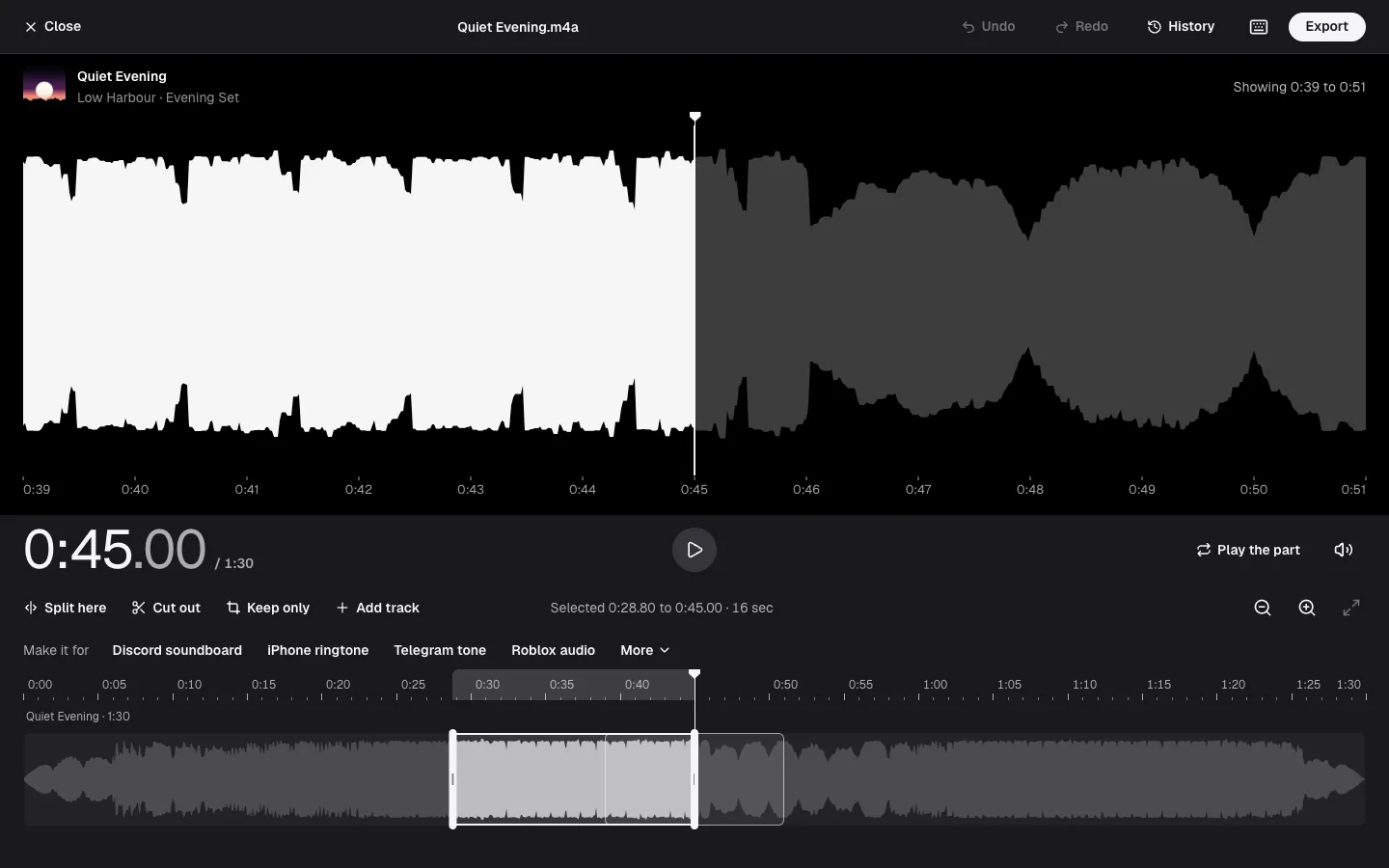
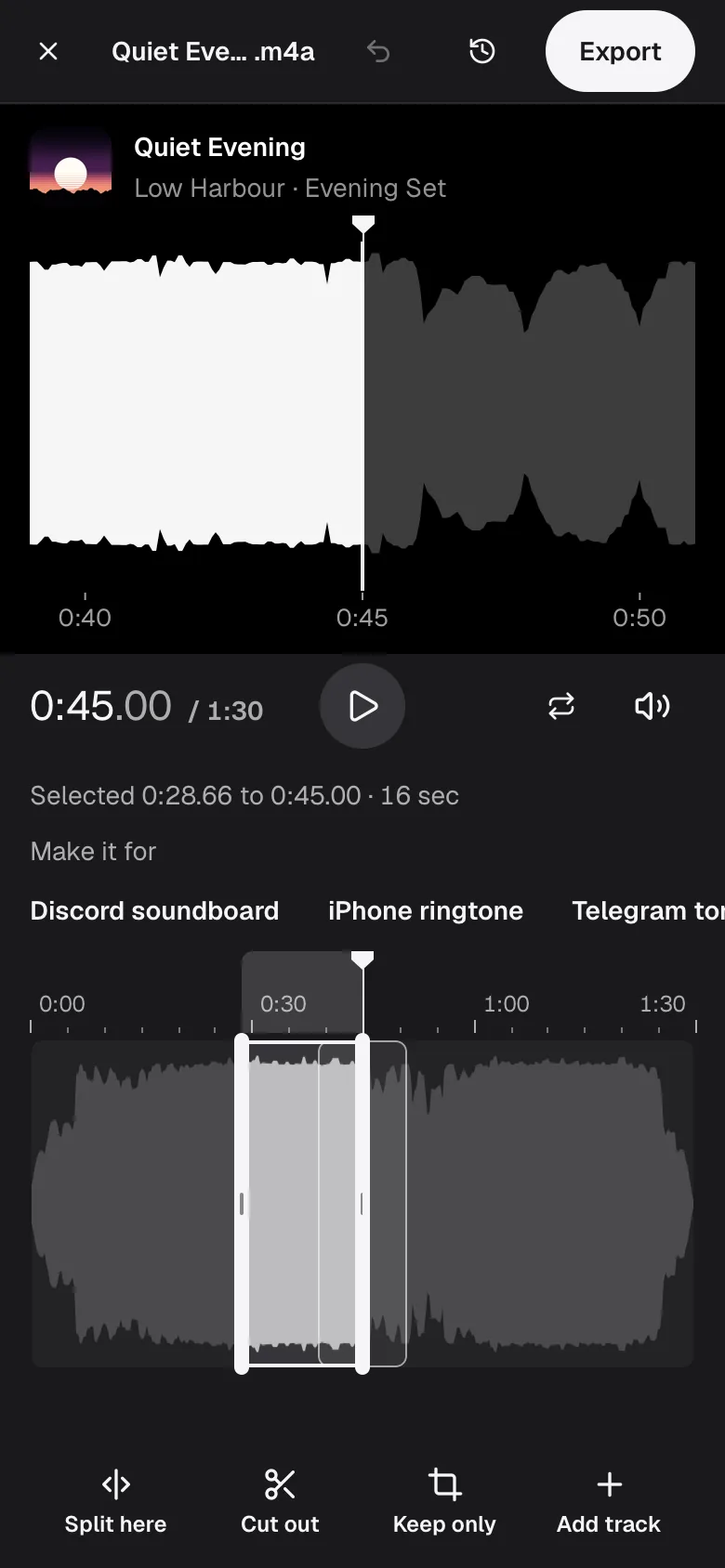
Three screens from the editor with a real song open. Nothing on them leaves the computer.
Good to know
What happens to your music.
What each choice costs, and what the numbers look like in practice.
Trimming by ear, then by number
Drag across the waveform to choose a part and play it on repeat. Moving a handle changes what loops, so you can nudge it until the first beat is right. When you know the time, type the start and end to the hundredth of a second (press the selected times under the timeline).
Cutting the silence off the start or end of a recording is the common job, and so is taking one section out of the middle. Cutting out a selection joins its two sides, and Undo puts it back.
Which format to save
M4A (AAC) plays on phones, computers and most players of the last decade. Opus is smaller at the same quality and plays in current browsers and on Android, but not on every older device. FLAC and WAV keep every sample: CD-quality stereo WAV is about 10.6 MB a minute, and FLAC usually takes 30 to 50 percent less for music.
There is no MP3 option. Browsers can't make MP3 files, and the free tools that can come with licence terms we do not accept for a commercial site. MP3 files open fine as input. M4A at 192 kb/s is the practical substitute: an hour is about 86 MB.
Does cutting lose quality?
With FLAC or WAV nothing is lost. M4A and Opus are compressed again at the quality you choose, so a cut of an MP3 or an M4A that is saved as M4A is compressed a second time. Start from the best file you have, and pick FLAC or WAV if the result will be edited further.
Saving a lossy file as FLAC or WAV does not bring detail back. It only makes the file several times larger.
How exact a cut is
WAV and FLAC come out at exactly the length you chose. M4A comes out 15 to 45 milliseconds longer and Opus about 20, because those formats add a little padding at the end. The sound itself starts and ends on time.
MP3 files start 18 to 36 milliseconds late in the browsers we tested, because browsers do not remove the short silence an MP3 begins with. It does not matter for a ringtone or a clip. For a loop that must be exact, start from a WAV or FLAC and not an MP3.
Joining tracks, and what it cannot read
Tracks are joined end to end with no gap. They can come from different sources, and mono and stereo can be mixed: the sound is matched, and each edge that meets another fades over 5 milliseconds so the join does not click. There is no crossfade.
Your browser does the reading, so MP3, M4A, WAV, Opus, Ogg and FLAC open, and the sound of a video does too. AIFF, WMA and raw AC-3 files are refused with a message. We ran Chrome and WebKit, the engine behind Safari, not Safari itself and not Firefox.