
Crop it, turn it, save it your way.
Free. No account. Photos are never uploaded.
Crop, rotate or flip it, then save it as JPG, PNG, WebP or AVIF. Nothing leaves this device.
Drop a photo to editChoose a photo to edit
How it works
Drop, crop, save.
Crop to a shape or freehand, rotate, flip and resize, then save as JPG, PNG, WebP or AVIF. iPhone HEIC photos open where your browser can read them.
1
Drop a photo
HEIC, JPG, PNG, WebP, AVIF and more open, depending on your browser. The picture shows large, as it will be saved.
2
Crop and turn
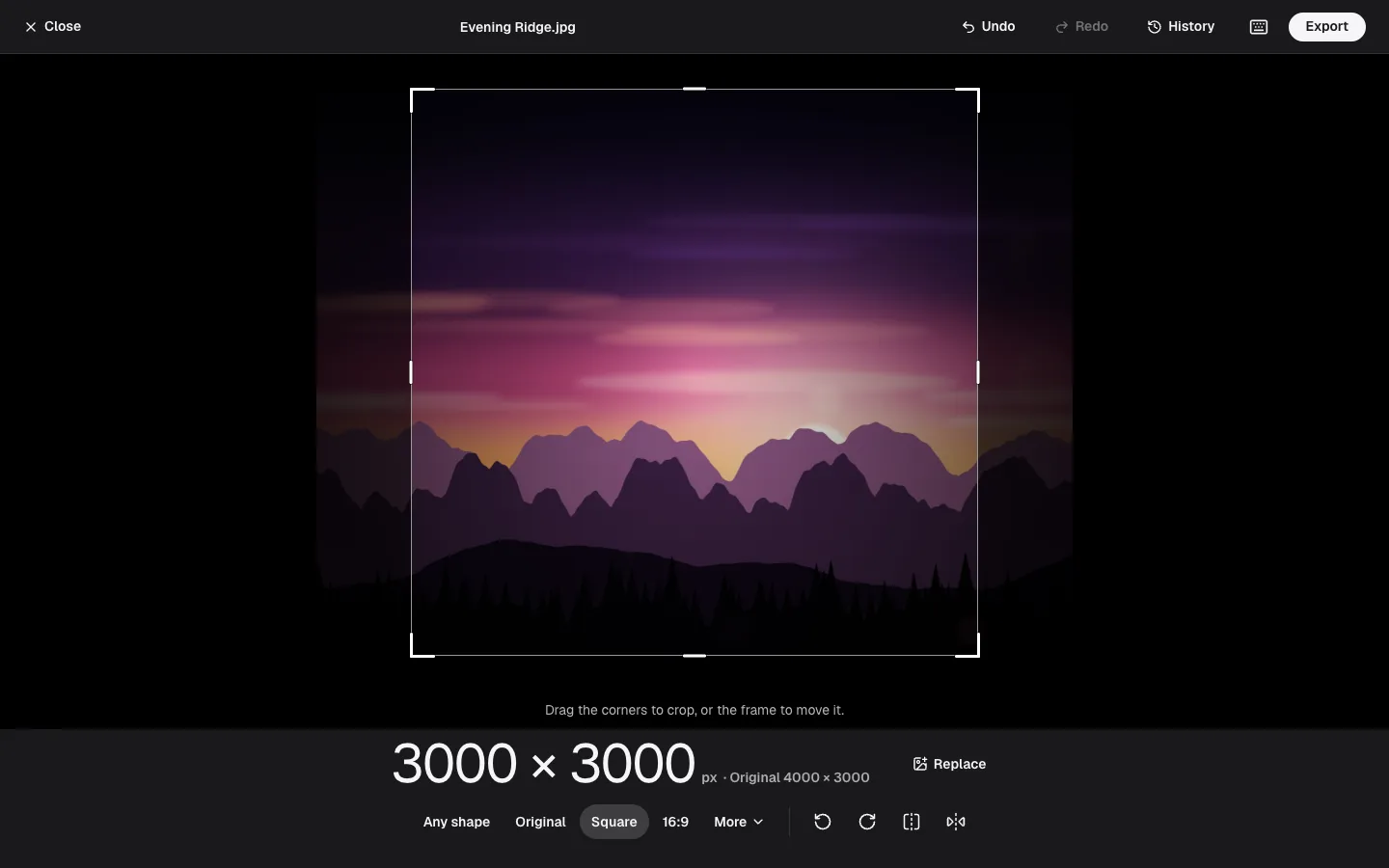
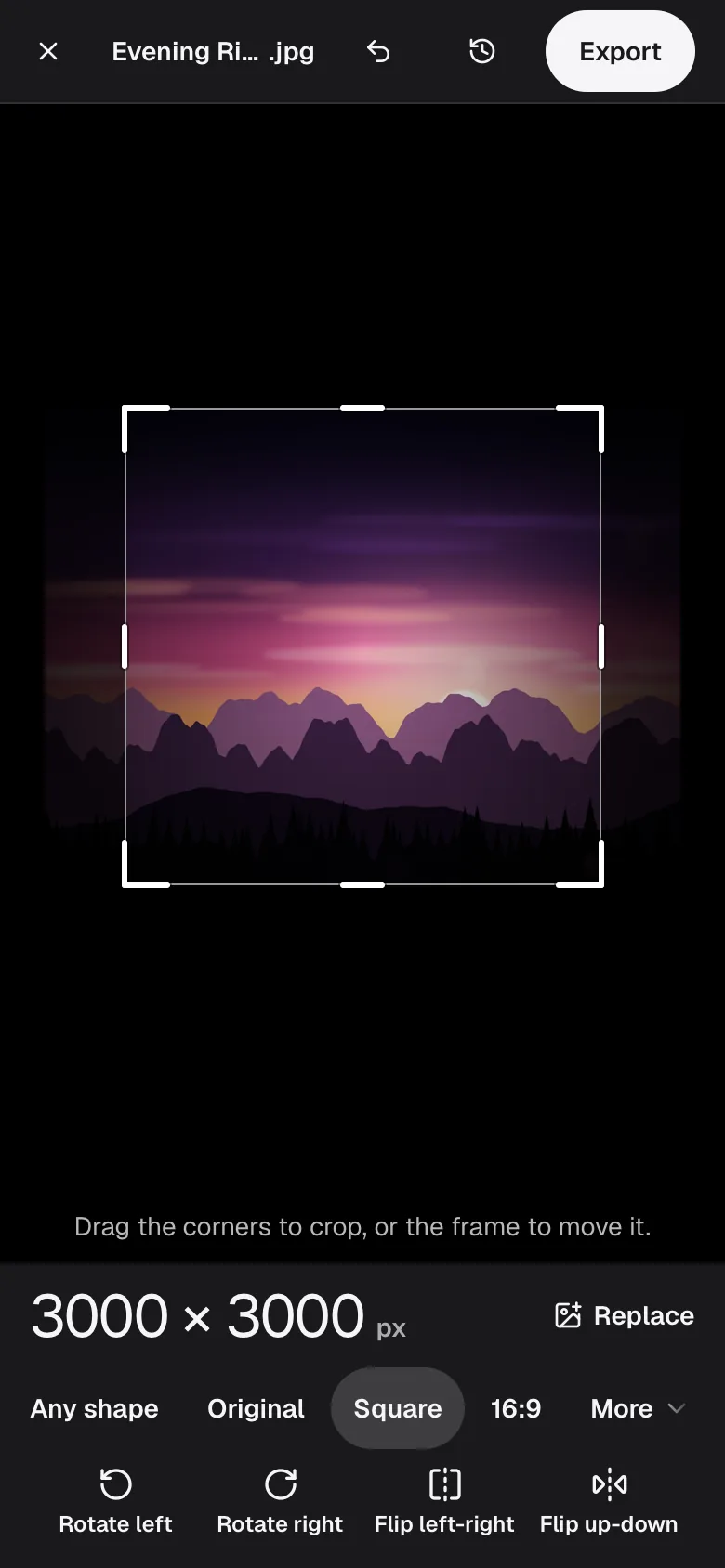
Drag the frame or its corners. Pick Square, 4:3 or 16:9 to keep that shape while you drag, and turn the picture in quarter turns. Every step is listed under History.
3
Pick how to save it
For the web, Sharpest or Newer format in one tap, with the file size shown before you save. Custom has the picture size, the type this browser can really write, and the quality.
See it work
The photo editor, in use.
Three screens from the editor with a real picture open. Nothing on them leaves the computer.
Good to know
What happens to your photo.
What the formats are for, what is removed, and where the limits are.
Which format to save
JPG opens everywhere and suits photographs. PNG is lossless and keeps transparency, which makes photographs large. WebP is usually smaller than JPG and opens in every current browser. AVIF is smaller still but takes longer to write: a 24-megapixel photo took about 4.5 seconds.
Sizes depend on the picture. On smooth test images a PNG wallpaper went from 2.4 MB to 59 KB as WebP, and a smooth JPG from 297 KB to 40 KB as AVIF. A grainy photo shrinks far less, so treat those as the best case.
HEIC from an iPhone
Safari opens HEIC itself. Chrome and Edge can't, but they can borrow the computer's ability to play HEVC video, which is what HEIC photos use. We tested that in Chrome on a Mac. On Windows it depends on HEVC support being there.
Where the computer can't play HEVC video, which is typical for Linux, HEIC photos can't be opened and the page says so. TIFF opens in Safari but not in Chrome. A GIF is converted from its first frame only.
How the crop is made
The order is fixed: the camera's orientation is applied first, then the crop, the turn and the flip, then the resize, then the save. The crop is cut from the original pixels and not from the preview, and a quarter turn moves pixels exactly, so nothing is blurred.
A shape such as 4:3 is read as you see it on screen, so it flips when you turn the picture. Cropping first also helps a big photo: one that would be shrunk to fit the browser's limits can convert at full size once the frame is smaller. The whole photo is still opened before cropping, so a very large file needs the same memory.
Location and other hidden data
The saved photo carries no location, no camera make or model, and no date. We checked the JPG, WebP and AVIF made from an iPhone photo whose original had all of those. Safari's PNG holds one small chunk with the colour space and the pixel size, and nothing else.
That also means a copyright line or description in the original is gone. Colour is converted to sRGB, so a Display P3 photo keeps its look and loses only the most saturated shades.
Limits, and when not to convert
Pictures larger than the browser can handle are shrunk, and the file name says so with a size such as -4096px. iPhones and iPads limit a picture to about 16.7 megapixels, so a larger photo is made smaller there. AVIF is capped at 48 megapixels, other formats at 120.
Saving a JPG as PNG does not restore anything, and each lossy save costs a little more detail. Keep the original, and make copies for the places that need them.