
Cut, join and shrink a video.
Free. No account. The video is never uploaded.
Cut parts out, keep one part, or join clips. Nothing leaves this device.
Drop a video to editChoose a video to edit
How it works
Drop, cut, save.
Take out the parts you don't want, put clips one after another, then shrink the result to a size limit or save an MP4 that every device plays.
1
Drop a video
Or several. Each clip is a strip of frames, so you can find a scene by eye.
2
Cut and join
Drag across the timeline to pick a part, then cut it out or keep only that part. Add another video to put it after the first, and drag clips to change the order. Every step is listed under History, so you can go back to any of them.
3
Pick how to save it
Chat or social, Email, Plays everywhere or Just the sound: one tap each, with the size shown before you save. Custom has a size limit and a picture size of your own.
See it work
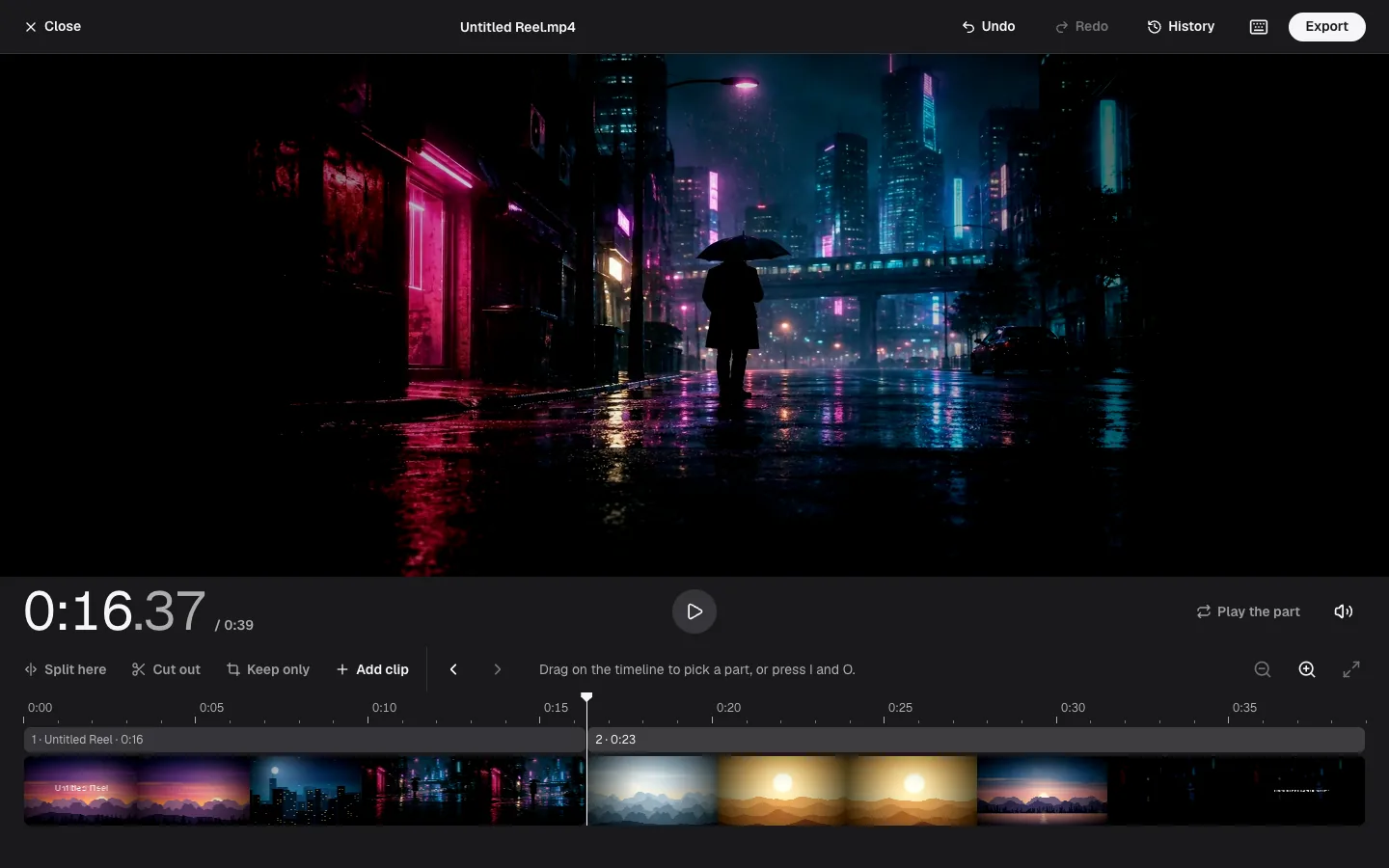
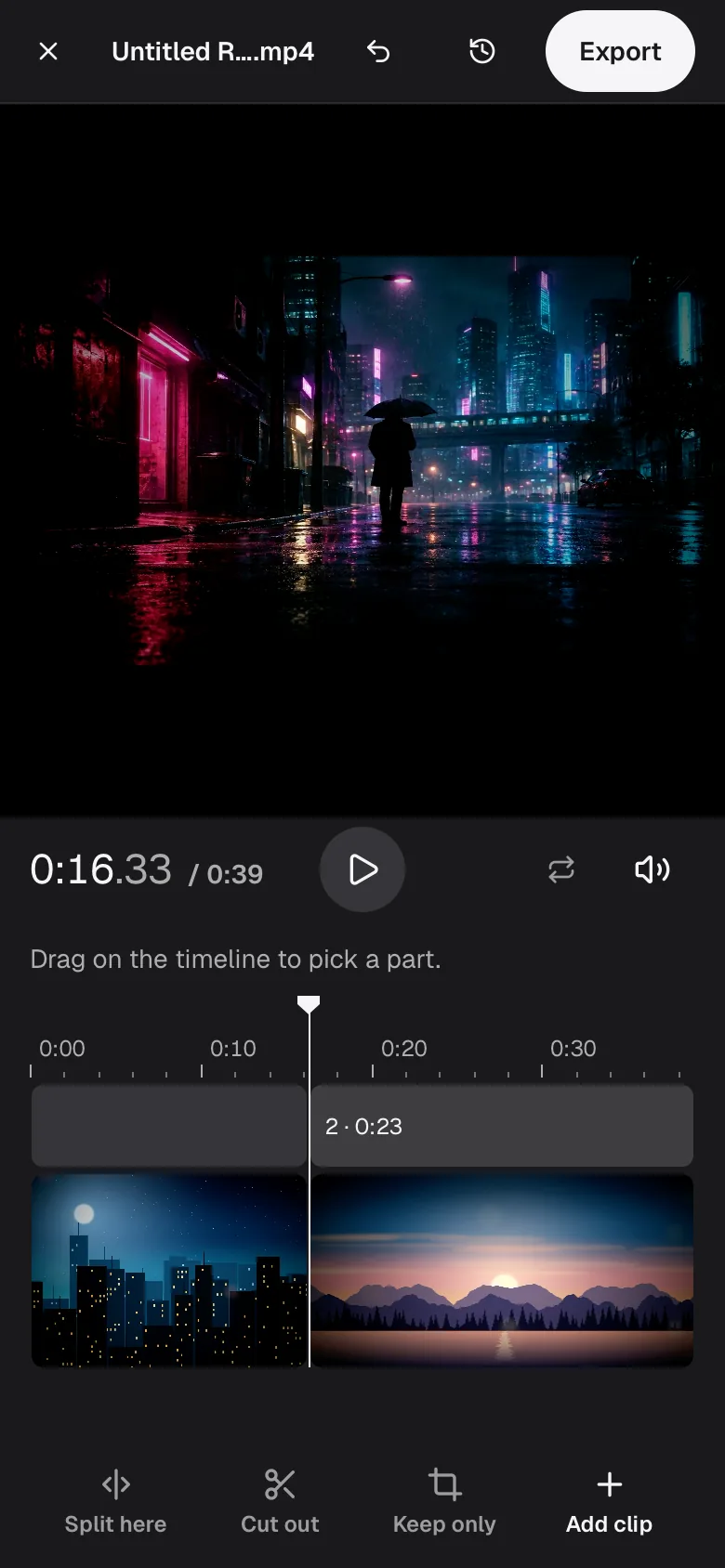
The video editor, in use.
Three screens from the editor with a real file open. Nothing on them leaves the computer.
Good to know
What happens to your video.
Notes from running real files through it, including the cases where this is the wrong tool.
Some cuts are instant, others take a moment
A video is stored as full pictures every second or so, with the pictures in between saved as changes from the last one. A cut that starts on one of those full pictures and is saved as an MP4 is copied as it is: instant, with no loss at all.
Start anywhere else and the pictures before the next full one have nothing to be built from, so that part is converted again. That keeps the cut exact to the frame, at the price of time: a 220-second 4K file went to 1080p in 33 seconds in Chrome. There is no shortcut that converts only the first seconds, so a cut between full pictures converts the whole part.
Joining clips of different sizes
Clips play in the order on the timeline. When their sizes differ, the first clip sets the picture size and the others are fitted inside it with bars, never stretched.
Clips with different frame rates keep their own timing, so no frame is dropped or doubled at a join; the frame rate of the file then varies, which players handle. Sound from different sources is matched, and every cut edge that meets another fades over 5 milliseconds so a join does not click.
Making it fit a size limit
Pick a limit and Flex Convert works out how much data each second can use from the length of the video, makes the picture smaller when it has to, and checks the result. If the file lands over, it converts again. In nine Chrome runs at 10, 25 and 50 MB the file came out between 1.9 and 4.2 percent under the limit, never over.
Calm footage can land further under, because simple pictures need less data: a plain gradient came out 14 percent under a 10 MB limit. A long video in a small limit is refused with a message instead of being returned oversized. A four-minute video fits 10 MB, at a low resolution.
An MP4 for every device, and picture size
The MP4 uses the video and sound formats that nearly every player knows (H.264 and AAC). When the video already does, it is copied in seconds. An iPhone clip recorded as HEVC is converted, and H.264 needs more data than HEVC for the same quality, so the file grows: a 2.3 MB HEVC clip came out at 3.7 MB. If the destination plays your file already, such as an Apple device or an editor opening a MOV, leave it alone.
A smaller picture size counts the short side, so 720p of a portrait clip is 720 by 1280. It never enlarges. A 56.9 MB 4K clip became 15.8 MB at 1080p.
What it will not do
We ran it in Chrome and in WebKit, the engine behind Safari, but not in Safari itself and not in Firefox. Video is made by your browser itself, and where it can't, Flex Convert says so.
Sound in Dolby Digital (AC-3, E-AC-3) or DTS can't be read by those browsers, so the file is saved without sound and says so. ProRes video is refused, and so is HEVC on a computer that can't play it. A result over about 4 GB as one MP4 is refused as well.